How to Use Seedance 2.0
Your complete guide to creating professional AI videos with Seedance 2.0. Learn text overlays, multi-modal references, video editing, and prompting best practices — all with real examples.
Key Principles
1.1 The 4-Element Formula
Seedance 2.0 understands natural language deeply, letting you flexibly combine demands. Combine these elements to control your output.
1.2 Multi-modal Control
Beyond text, you can upload reference images and videos to precisely lock in your visual standard. Seedance 2.0 supports deep reference integration.
Text Generation
2.1 Titles & Slogans
"Text content" + "Timing" + "Position" + "Appearance style", "Text features (color, style)"
Seedance 2.0 can automatically match appropriate text styles. If strict control is needed, refer to "Logo Reference" under image references.
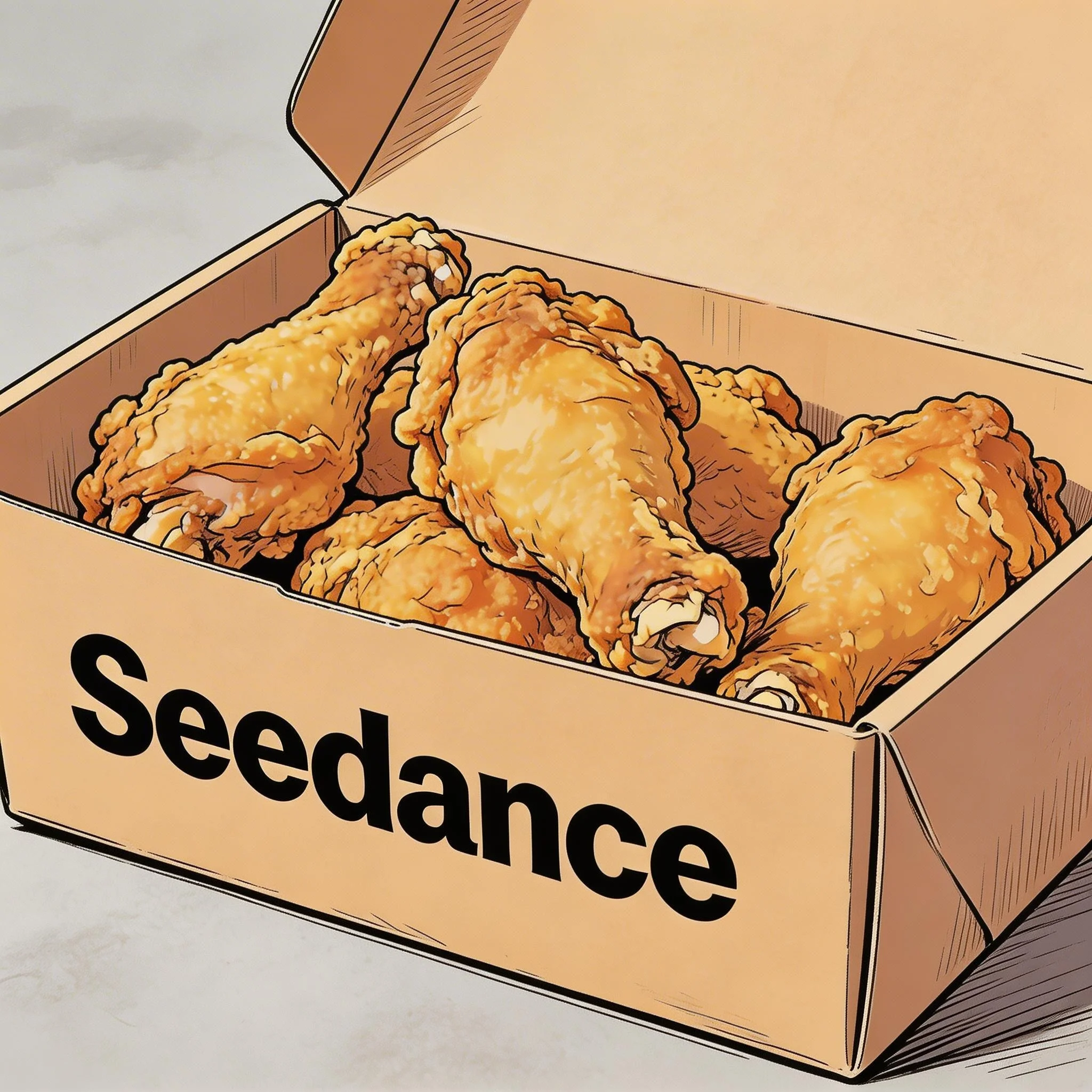
Fried chicken scene
Hand-drawn comic style, three people sitting together eating fried chicken from @Image 1, friendly and joyful atmosphere, then the screen gradually blurs, displaying the text "Joy is in Seedance" in the center.
2.2 Subtitles
Subtitles appear at the bottom of the screen with content "...", synchronized with the audio rhythm.
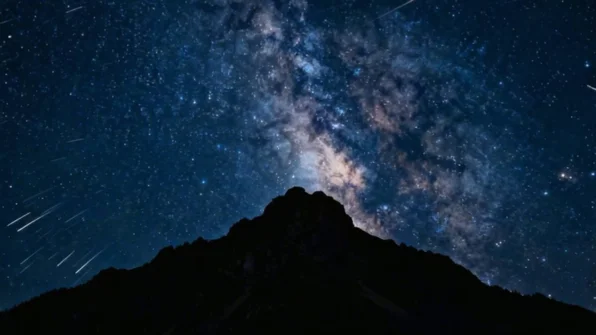
Night sky scene
Generate a video with voiceover. A deep, calm male voice says: "In the vast universe, our world is but a fleeting moment. Yet within it, life thrives against all odds." The scene should slowly transition from night to dawn, stars gradually fading as the sun rises behind the mountains. Subtitles appear at the bottom matching the dialogue.
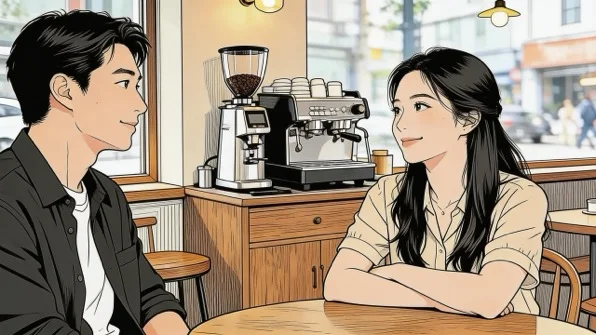
Office scene
The two people in the image are chatting in an office. The woman speaks first: "You always arrive right on time — do you enjoy that feeling of perfect timing?" The man responds with a smile: "I have my own rhythm." The dialogue is casual and natural, with subtitles appearing at the bottom.
2.3 Speech Bubbles
"Character" says: "...", speech bubbles appear around the character containing the dialogue.
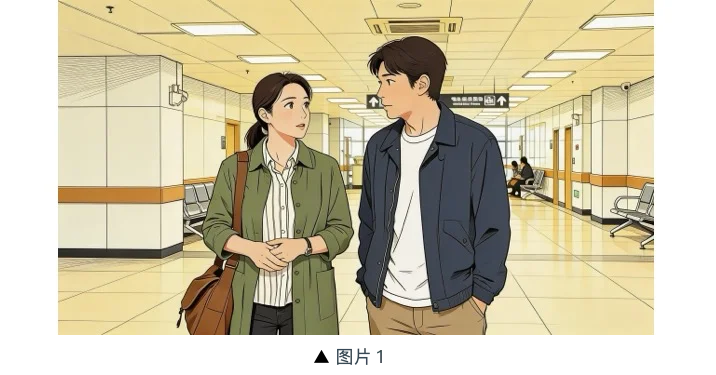
The two people in @Image 1 are jogging on a school track in sportswear. The girl looks at the boy and says confidently: "We can definitely do it!" Cut to a close-up of the boy, who hesitantly replies: "Are you sure?" Cut back to a medium close-up of the girl, who says cheerfully: "Yes!" The mood is bright and determined. Speech bubbles appear around the speaking character with the dialogue.
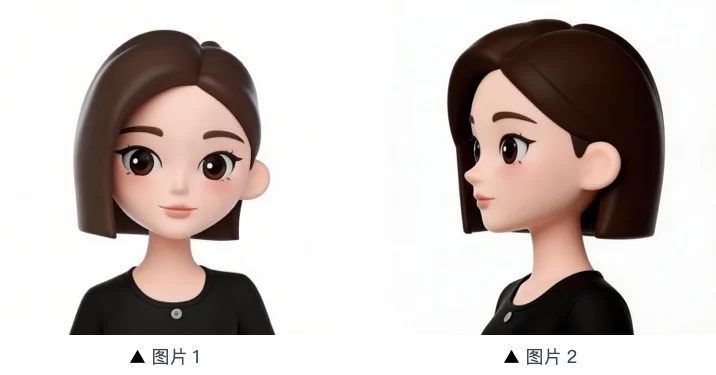
Girl in strawberry garden
Reference the girl from @Image 1 and @Image 2. The girl is in a strawberry garden, picks one, takes a bite, and says with a smile: "This is the real deal!" A speech bubble appears around her containing the dialogue.
Image Ref
3.1 Multi-view Reference
Reference/Extract/Combine + "Subject" from "Image n", generate "scene description", keep "Subject" features consistent.
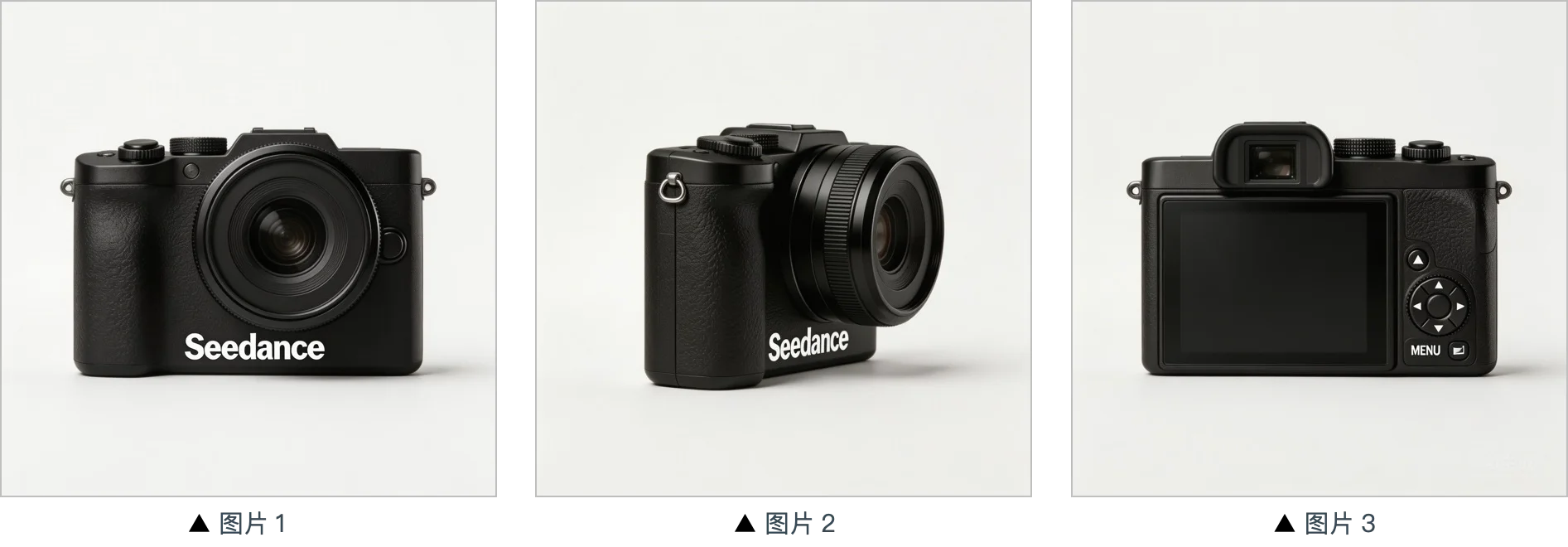
Camera views
Extract the camera from @Image 1, @Image 2, @Image 3, change the background to white. The camera is on a white table, the lens focuses on the camera in close-up, then slowly rotates around it, clearly showing the front, side, and back.
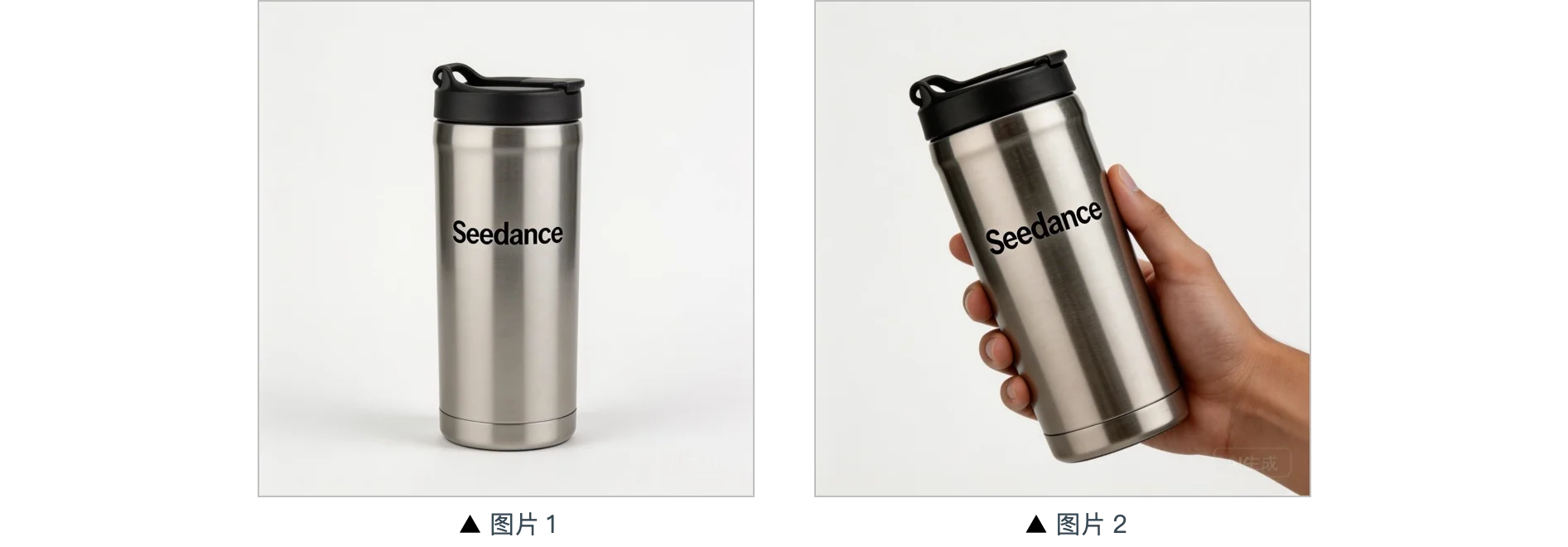
Thermos views
Warm-toned home scene background, mid-shot presenting the thermos from the reference images, camera smoothly pushes in to a close-up of the thermos, a hand enters from off-screen to naturally grip and lift the thermos, camera follows the hand's slight rotation to showcase it.
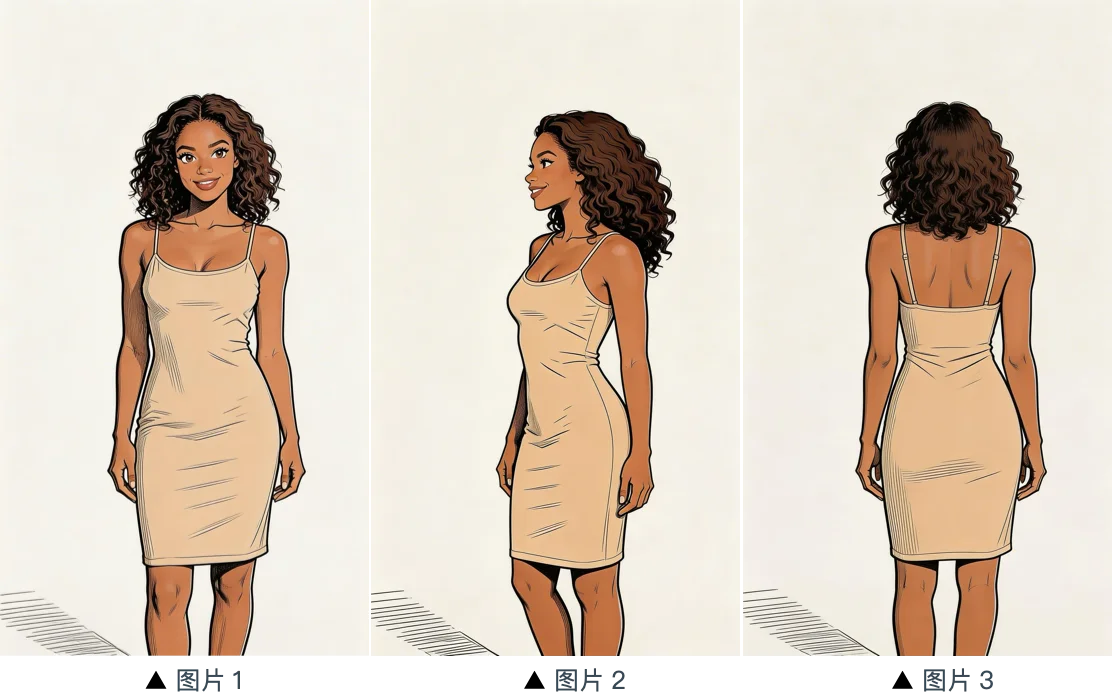
Woman views
Reference the woman from @Image 1, @Image 2, @Image 3, generate a scene of her eating cake in a café.
3.2 Multi-element Reference
Reference/Extract/Combine/Follow/Generate + "referenced element description" from "Image n", generate "scene description", keep "referenced element" features consistent.
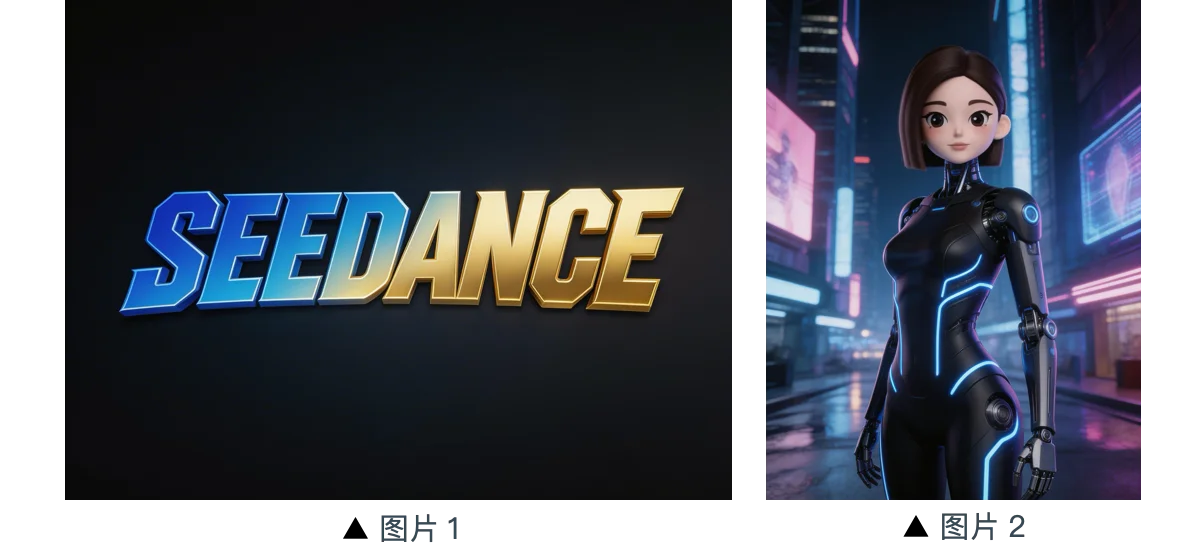
Background is a neon-lit futuristic urban skyway with flying vehicles and holographic ads interweaving. Reference the girl from @Image 2, first show a mid-shot of her releasing silver floating lanterns with holographic projections, then pull back to reveal floating lanterns filling the sky. The image gradually blurs, then the Logo from @Image 1 appears. Overall style is 3D cyberpunk sci-fi animation.
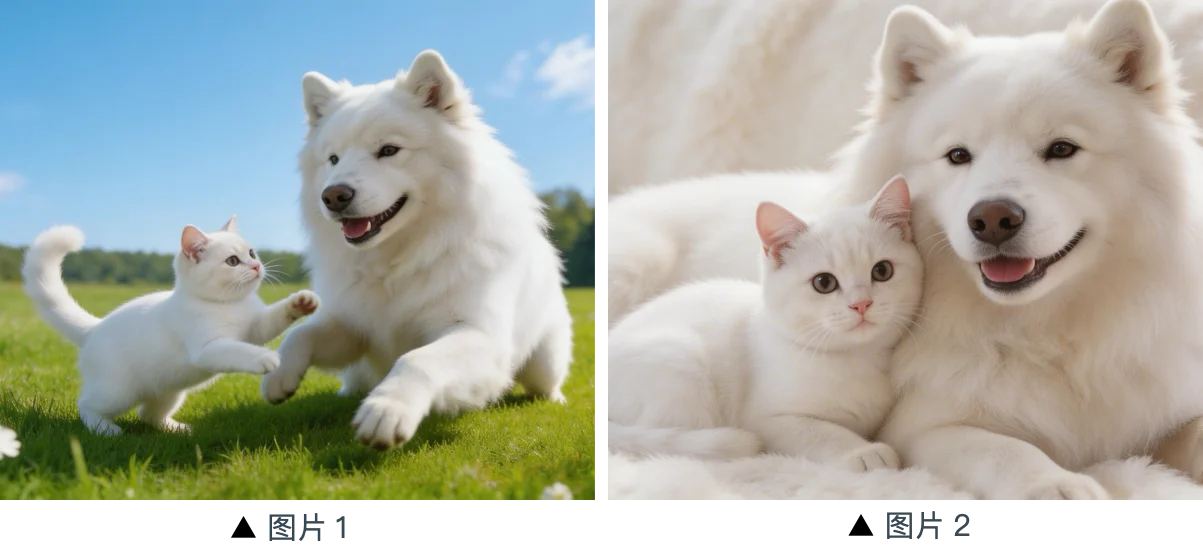
Cat & dog assets
Reference the cat and dog from the images. In a cozy apartment, the dog is lying down eating kibble. The cat walks over and gently touches the dog with its paw. The dog stops eating upon seeing the cat, and the cat snuggles up beside the dog. Warm color tones throughout.
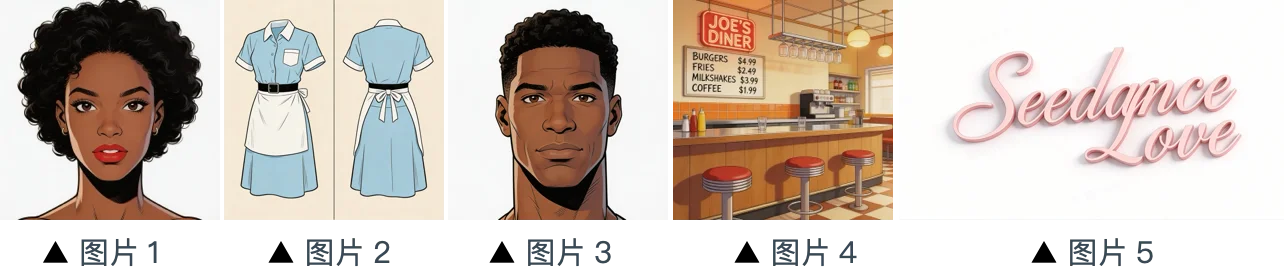
Five-image combo
Scene is set inside the restaurant from @Image 4, bustling with customers. The girl from @Image 1 is wearing the outfit from @Image 2, organizing items on the counter. The boy from @Image 3 is a customer who walks up, wanting to ask for her contact information. The logo from @Image 5 is always displayed in the bottom-right corner.
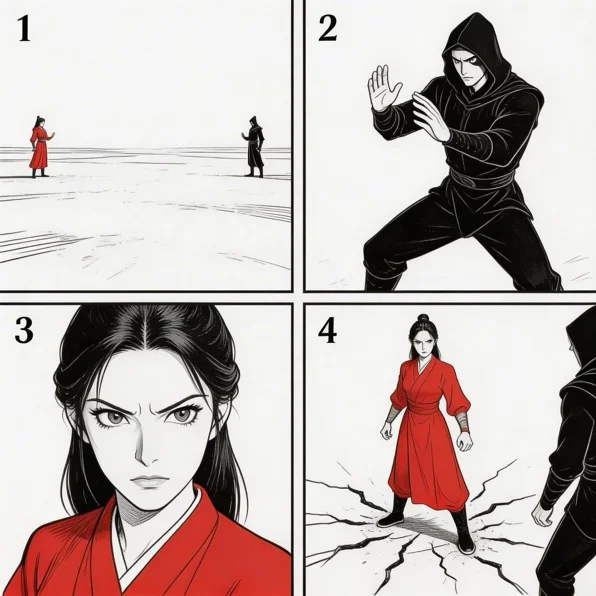
Storyboard
Reference the storyboard from the images, generate an intense fighting scene. The compositions from each storyboard panel should appear in sequence, followed by intense combat between the two characters.
Character storyboard
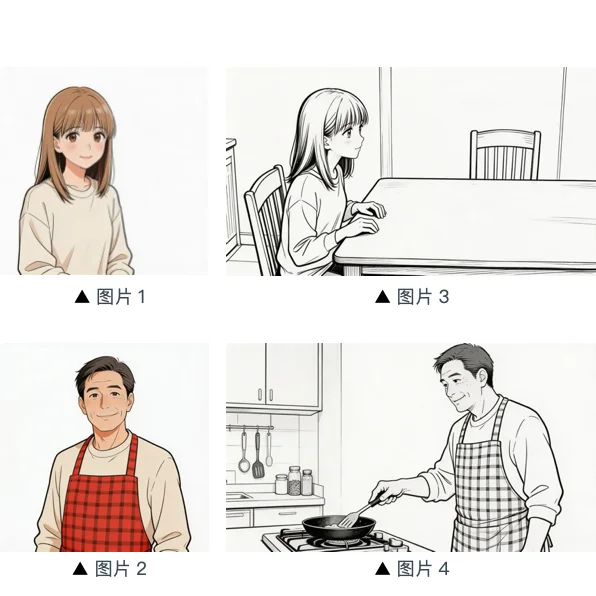
Reference the storyboard composition from @Image 3. The girl is waiting for dad to finish cooking. She says: "아빠, 배고파요! 밥 다 됐어요?" Her appearance references @Image 1. Then the camera pans right to @Image 4's composition. Dad's appearance references @Image 2. Dad replies: "거의 다 됐어, 조금만 기다려!" Then cut back to a close-up of the daughter's slightly disappointed expression: "아직 멀었어요? 맛있는 냄새 나는데..." Then cut to dad's close-up: "이제 진짜 금방이야. 빨리빨리 하지 말고 손부터 씻고 와!"
Video Ref
4.1 Action Reference
Reference "action description" from "Video n", generate "scene description", keep action details consistent.
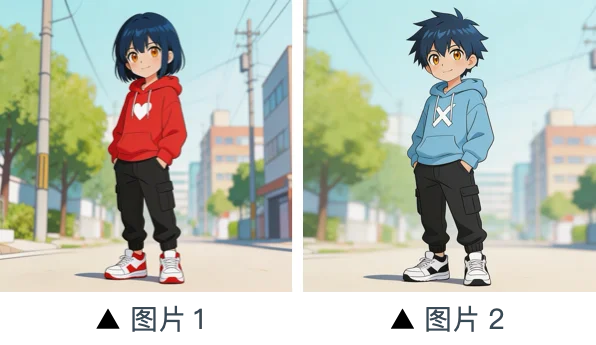
Reference the character actions and camera language from @Video 1, generate a fight scene with @Image 2 and @Image 1. @Image 2 is the left character, @Image 1 is the right character. With intense background music.
Horse running reference
Reference the horse's running form from @Video 1, generate a golden stallion galloping on a grassland, then freeze its magnificent running pose, transforming into a horse-shaped gold pendant.
4.2 Camera Reference
Reference "camera movement" from "Video n", generate "scene description", keep camera movement consistent.
Camera movement reference
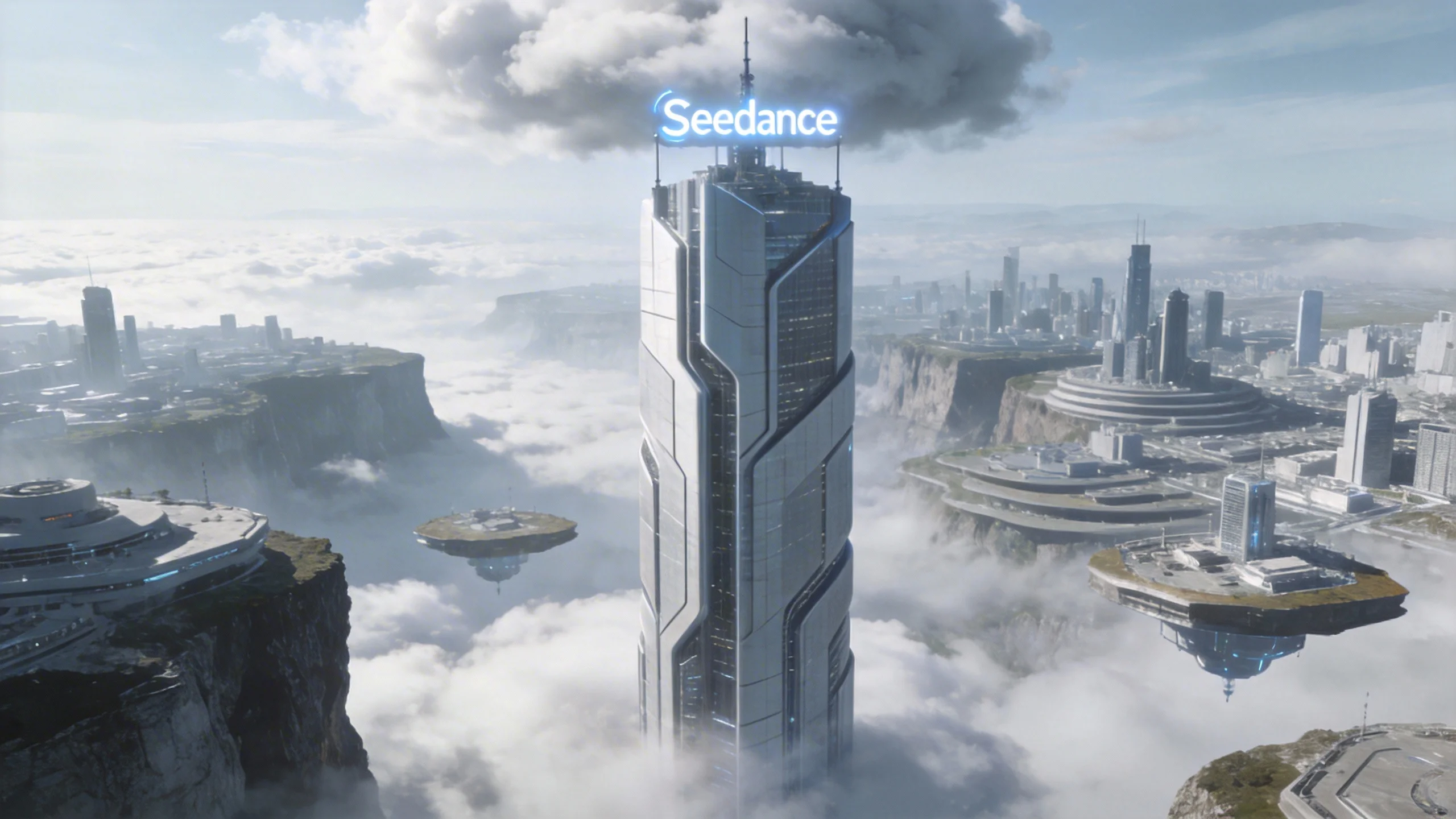
Reference the camera movement from @Video 1, create a concept video of a tech park with the high-rise from @Image 1 as the visual center, also using a first-person diving perspective, highlighting the tech feel of the park in @Image 1.
4.3 VFX Reference
Reference "VFX description" from "Video n", generate "scene description", keep VFX consistent.
Flute girl
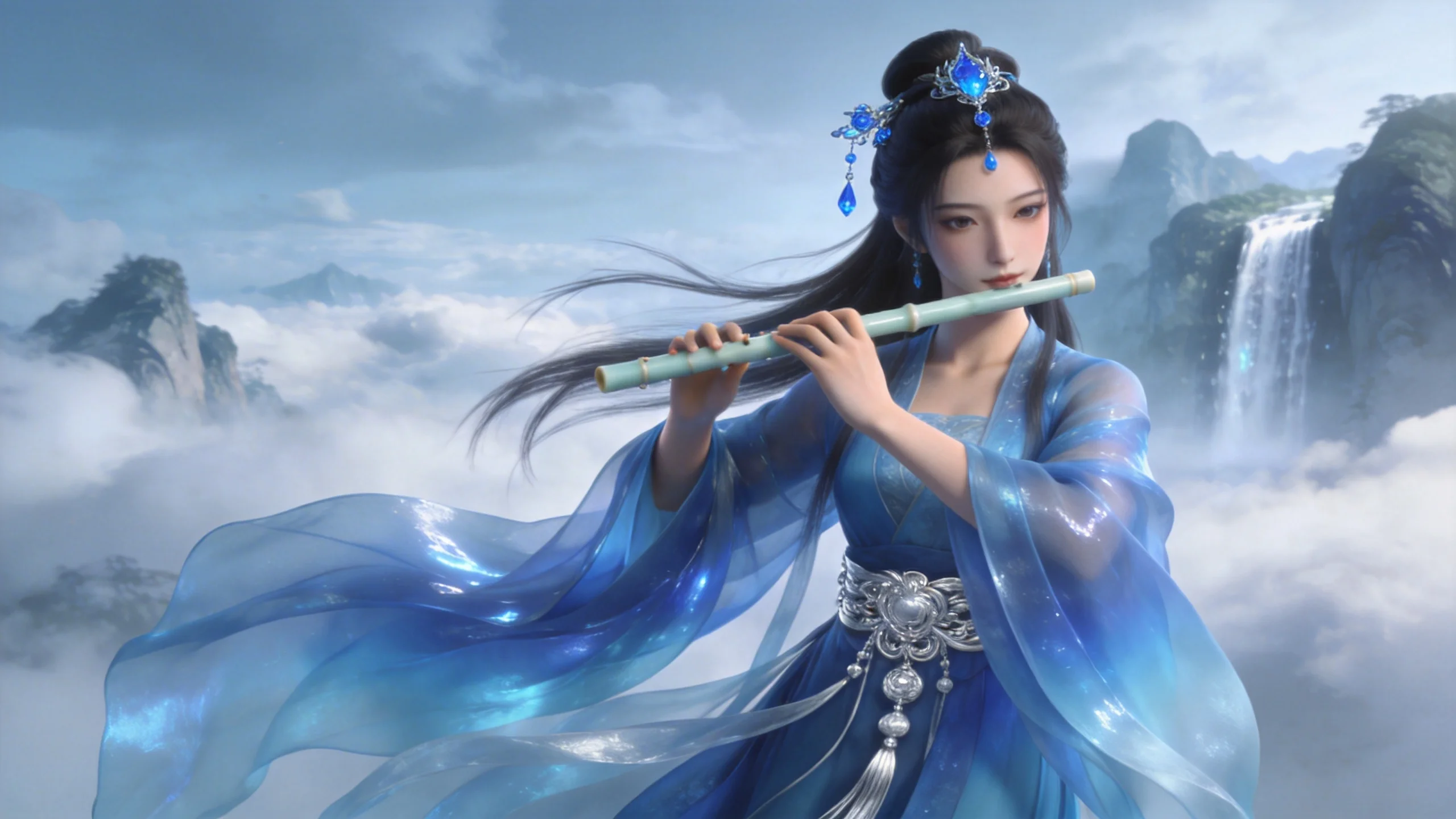
Reference the golden particle effects from @Video 1, have the character in @Image 2 playing the flute while surrounded by the same particle effects.
Wing effects reference
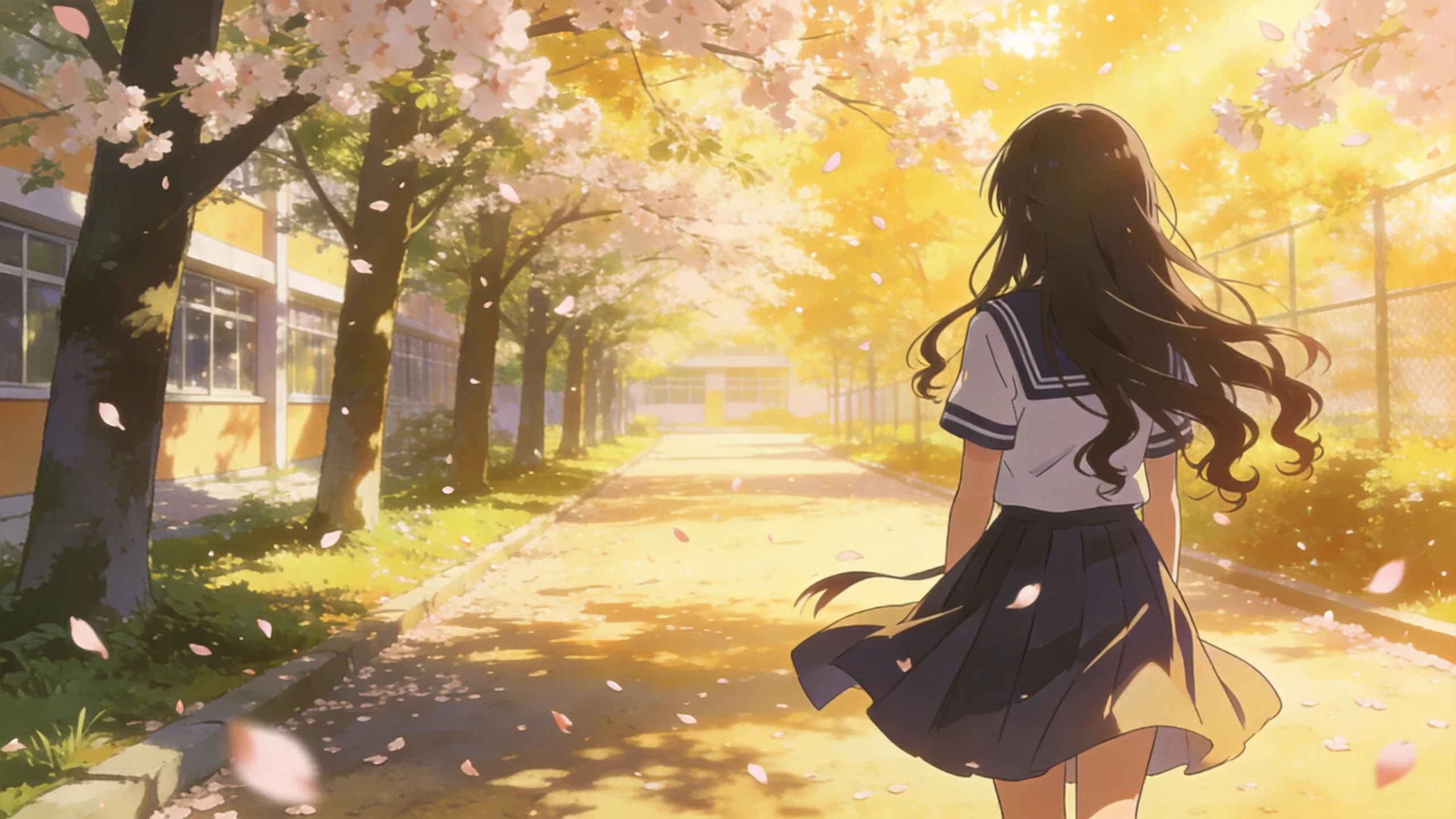
Reference the effects from @Video 1, have the girl in @Image 1 grow the same wings, with the wing generation trajectory matching.
Video Edit
5.1 Modify Elements
Add elements: Add "ideal element description" at "time position" + "spatial position" in "Video n". Remove elements: Remove "element to delete" from "Video n", keep other content unchanged. Modify elements: Replace "element to replace" in "Video n" with "ideal element description".
Original video
Add fried chicken, pizza, and other snacks to the counter in @Video 1.
Original video
Clear other parts and tools from the desktop in @Video 1, keep the desktop clean and tidy, leaving only what they're holding.
Replacement face cream / Original video
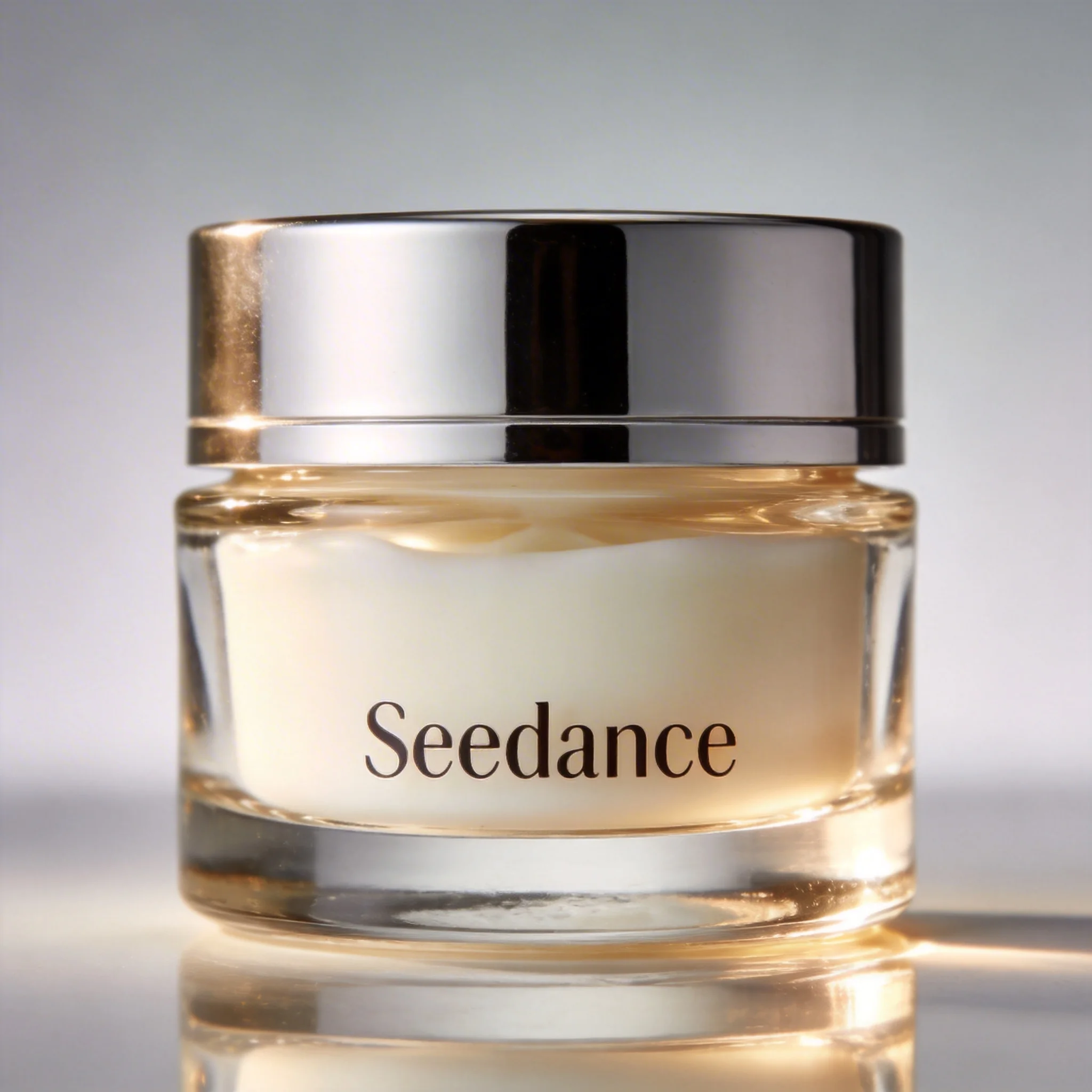
Replace the perfume in @Video 1 with the face cream from @Image 1, keeping the motion and camera movement unchanged.
5.2 Extend Video
Extend "Video n" forward/backward + "description of extended video" Generate content before/after "Video n" + "description of extended video"
Original video
Generate content after @Video 1: two late-arriving men run towards them, the five finally meet and chat happily.
Original video
Extend @Video 1 forward, give the man in white an over-the-shoulder shot. He says: "It's not that bad. You're just stressed. Everyone goes through this, you just need to keep going."
5.3 Splice Tracks
"Video 1" + "transition description" + cut to "Video 2" + "transition description" + cut to "Video 3"
Two source clips
@Video 1, the moment the leaf touches the ground, golden particle effects burst out, a breeze blows through, cut to @Video 2.
Best Practices
Core Principles
Outline
[Scene type] + [Subject 1][State 1] + [Subject 2][State 2] + [Environment] + [Lighting & Mood] + [Camera Movement]